
WEB USER GUIDE
Web User Guide
Daily tasks for customer users and Customer Administrators.
Available menus and data depend on Role, Zone authorization, plan, and project settings.
Sign-in and home
Use the URL and credentials provided by the administrator, then open functions available to your account.
- 1Open the Chanlink URL provided by your administrator.
- 2Enter your personal account and password.
- 3If a function or data is missing, verify Role and Zone access or contact the System Administrator.
Overview and Zone view
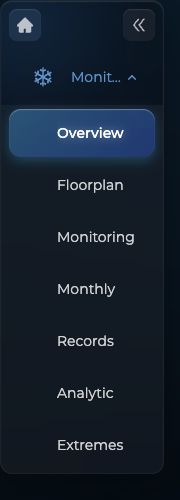
Review Sensor totals and abnormal summaries, then narrow the issue to a Zone.
- 1Open the Monitoring Center overview.
- 2Review Sensor status and abnormal summaries.
- 3Switch to Zone view to focus on the affected area.
Device Monitoring
Review latest values, status, and trends by day, week, or month.
- 1Find a Sensor by Zone, classification, or keyword.
- 2Verify the latest value, data time, and status.
- 3Expand the chart and confirm environmental and on-site conditions when abnormal.
Abnormal events and Maintenance Center
Chanlink creates events from Monitoring Range rules; users may also create maintenance events.
- 1Open the event from the abnormal indicator or Maintenance Center.
- 2Review Sensor, occurrence time, trend, and on-site conditions.
- 3Record actions, attachments, and results. Maintenance records appear in monthly reports.

History and reports
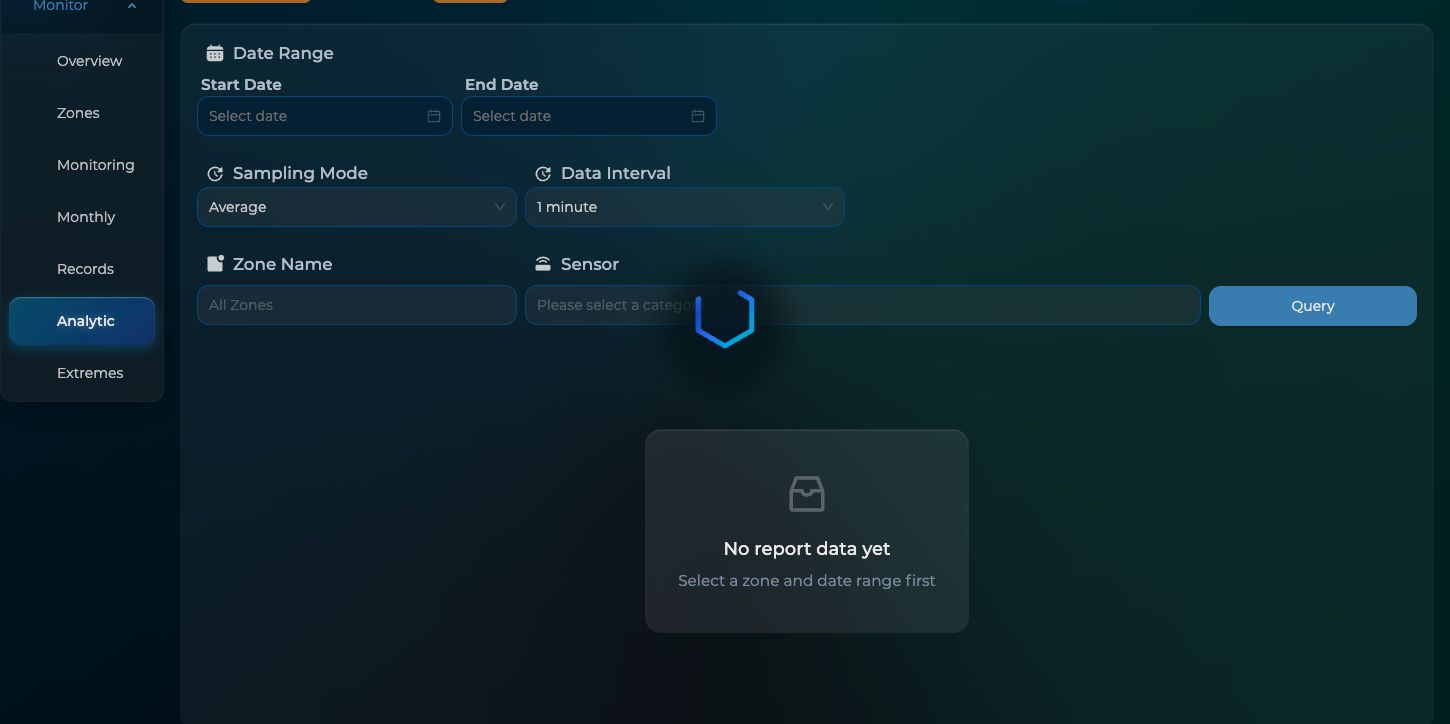
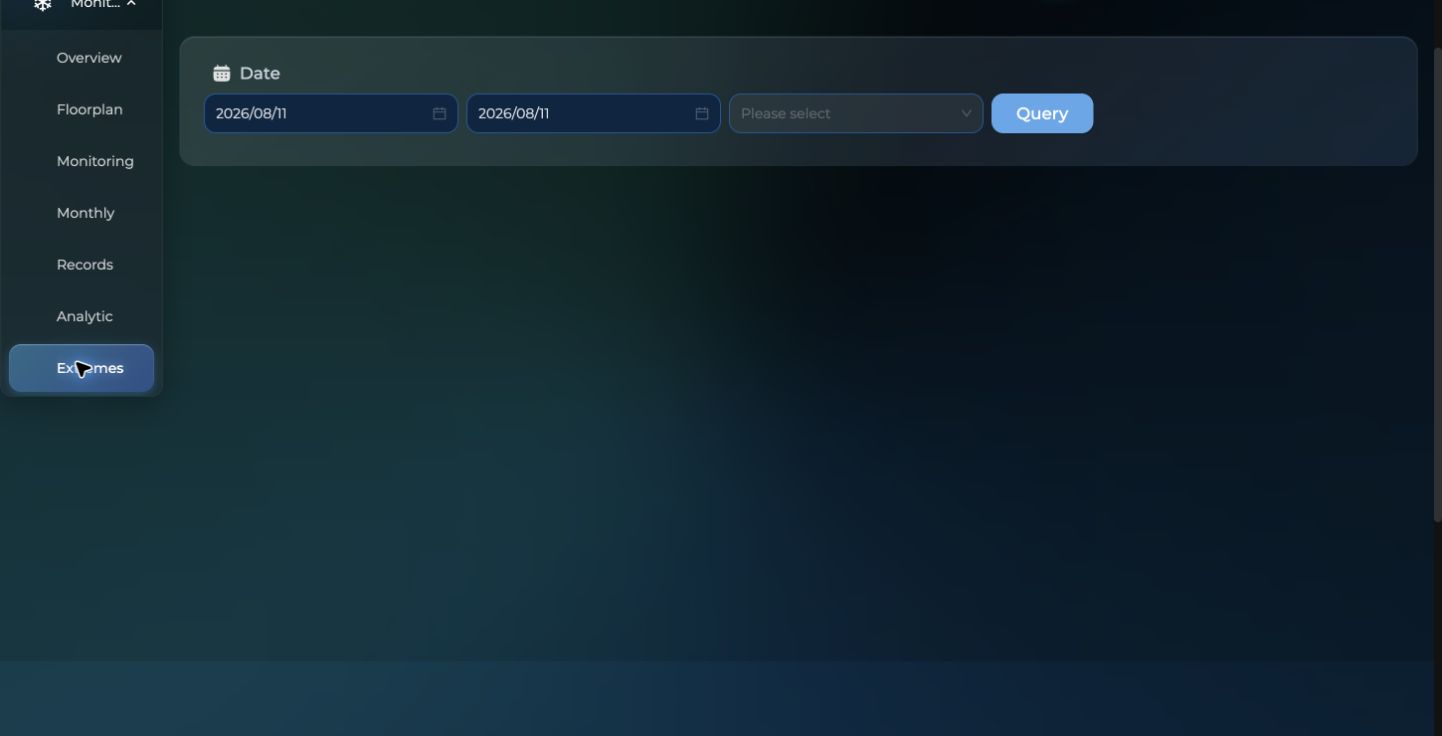
Use monthly reports, Record Query, analytics, and daily extremes for a selected period.
- 1Select date, Zone, and Sensor.
- 2Use a larger sampling interval for longer Record Query periods.
- 3Open the monthly report, analysis, or daily maximum and minimum required by the task.
Account Management (Customer Administrator)
Create Company accounts and assign one Role and the required Zones.
- 1Create a globally unique account and enter the user name.
- 2Choose one Role using least privilege.
- 3Select required Zones, then verify with a test account.

Monitoring and notification rules (Customer Administrator)
Configure ranges, delays, and exclusion periods that directly affect events and notifications.
- 1Confirm the Sensor and data type.
- 2Set Monitoring and Notification ranges according to operating standards.
- 3After changing delays or exclusion periods, test one Sensor and review the result.

Calibration reports
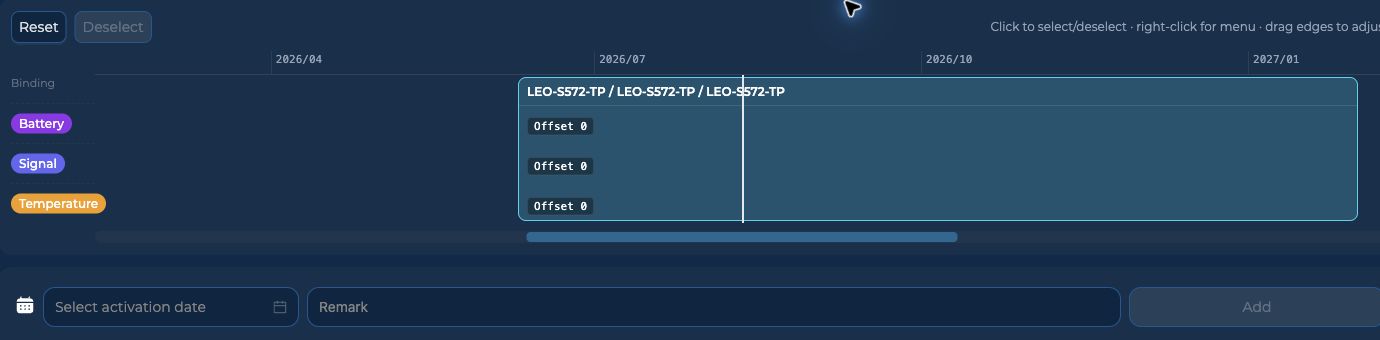
Administrators upload and bind PDFs; authorized users download reports from Device Monitoring.
- 1Confirm the PDF and applicable Sensors.
- 2Upload the PDF and verify bindings.
- 3Users download from Device Monitoring; calibration offsets are maintained manually from the report.
Need more help?
Send the page name and a de-identified description through the official LINE account.
Contact Support